Getting Started with Ishaara: A Step-by-Step Guide #
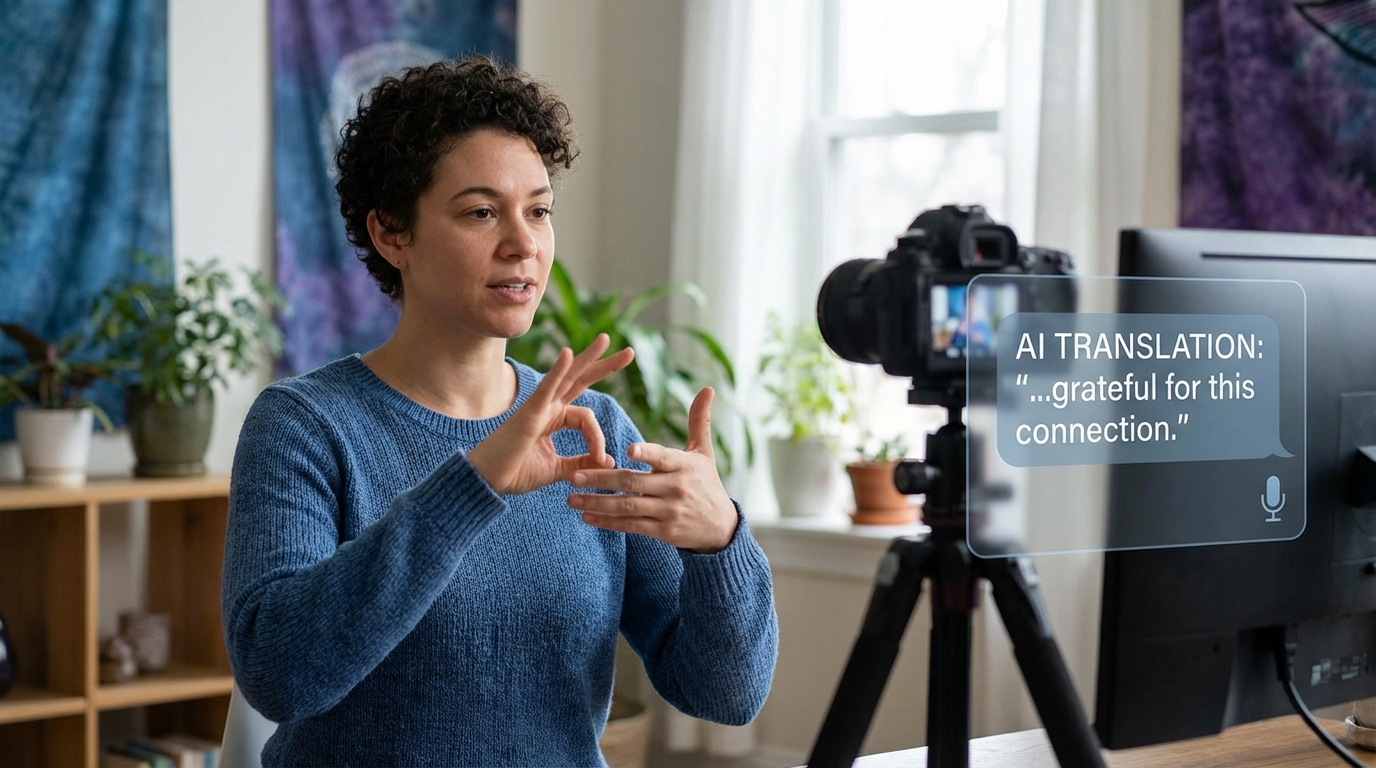
Communication should feel effortless, and that’s exactly what Ishaara is built to do. For millions of individuals, the language barrier between Indian Sign Language (ISL) and spoken or written language creates daily friction in schools, workplaces, and public spaces.
With nothing more than your device's camera and your hands, you can now translate ISL into readable text as naturally as having a spoken conversation. No expensive gloves, no complex software downloads—just pure, accessible technology directly in your browser.
Ready to bridge the gap? Here is exactly how to set up your environment and start translating.
Step 1: Open Your Digital Interpreter #
First things first, head over to our dedicated translation workspace:
Launch the Ishaara Translator →
The moment the page loads, Ishaara does the heavy lifting behind the scenes. Our platform automatically detects your device hardware (whether you are on a smartphone, tablet, or desktop) and warms up our custom machine-learning models. You’re ready to go without any complicated technical setup.
Step 2: Let the Camera See You #
To get started, simply click the Start Camera button on your screen. Your browser will likely ask for permission to use your camera—just click "Allow" so the AI engine can establish a visual connection.
Pro Tip: Make sure your hands and upper torso are comfortably visible within the frame. The clearer the camera can see the articulation of your fingers and the movement of your hands, the faster and more accurate your translation will be!
Step 3: Begin the Conversation #
Once you see your camera feed clearly on the screen and you are in a comfortable position, hit the Start Detection button.
That's it! You will notice a visual indicator showing that the system is now actively watching. The AI is scanning the video feed at dozens of frames per second, ready to recognize and translate your sign language gestures in real time.
Step 4: Sign Naturally and Clearly #
Now for the fun part—start signing! To begin, the system is perfectly tuned to recognize essential, everyday ISL phrases. Try starting with foundational greetings and pleasantries such as:
- Hello (A standard, universally recognized greeting)
- Thank you (Essential for daily interactions)
- Sorry (A quick, clear gesture)
- How are you? (To initiate a back-and-forth conversation)
If you're new to ISL, or you just want to double-check how to perform these specific signs so the AI reads them flawlessly, we’ve built a dedicated learning space just for you:
Visit the Ishaara Learning Hub to practice your signs →
Step 5: Watch the Magic Happen #
As you sign, you'll see the translated words begin to appear on your screen instantly. But Ishaara doesn't just spit out a robotic, disconnected list of words. Our Natural Language Processing (NLP) layer actively collects what you're signing and intelligently groups the gestures together to form natural, meaningful sentences.
This means you don't have to pause awkwardly between every single word. Sign at a comfortable, steady pace, and let the software handle the sentence construction.
Step 6: Reset, Adjust, and Keep Going #
Conversations flow, change direction, and sometimes we just need to start over or correct a thought. You can easily click the Clear Text button on your screen to wipe the current translation buffer and begin a brand new sentence whenever you like.
You also have total flexibility over your hardware. Using the camera toggle, you can switch between your front-facing selfie camera and your rear-facing camera—whatever gives you the best angle and the most comfortable setup for your environment.
A Few Pro-Tips for the Best Experience #
Machine learning models love clear data. To make sure Ishaara catches every subtle nuance of your conversation, keep these simple habits in mind:
- Find your light: A well-lit room makes a massive difference. Avoid standing with a bright window directly behind you, as it creates a silhouette effect that hides your hands.
- Stay in the frame: Keep your gestures contained within the visible camera area. If your hands drop out of sight, the AI loses the context of the sign.
- Take your time: Smooth, deliberate gestures are much easier for the system to read than rushed or blurry movements. Focus on clarity over speed.
- Stick to the basics: Using the currently supported ISL vocabulary dictionary ensures you get the highest possible accuracy. We are adding new signs all the time!
Bridging the Gap #
At the end of the day, Ishaara is so much more than a piece of technology. It’s a digital bridge connecting two worlds that have been separated by a language barrier for far too long.
With just a camera and a few simple gestures, you have the power to turn silence into a beautiful, flowing conversation. Let's get talking.